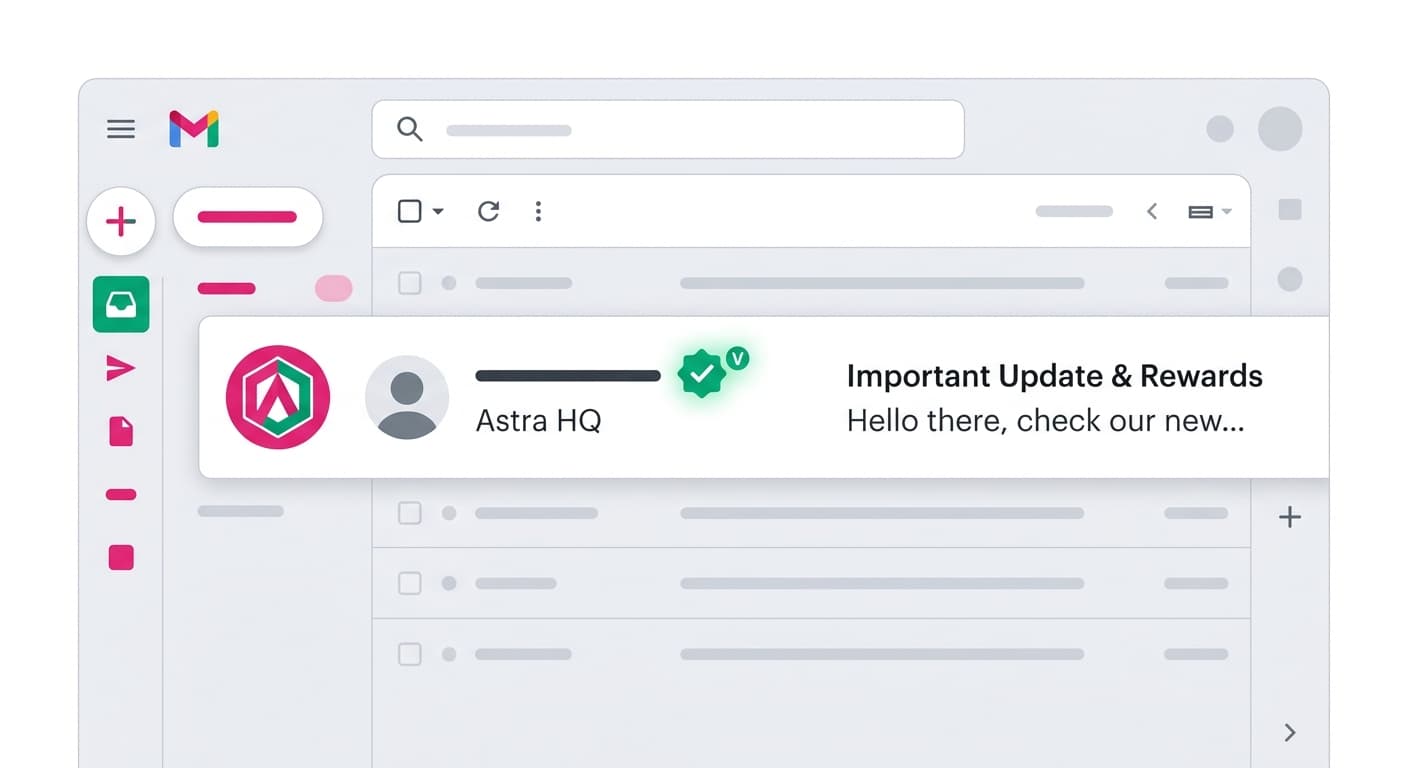
BIMI Setup Guide: Get Your Brand Logo in Gmail
Complete guide to setting up BIMI for your domain. Display your brand logo in Gmail, Apple Mail, and other email clients.
Stekpad Team
Email Deliverability Experts
What BIMI Is and Why It Matters
"BIMI (Brand Indicators for Message Identification) is the standard that displays your brand logo directly in email inboxes — next to your sender name, before the email is even opened." In Gmail, Yahoo Mail, Apple Mail, and other BIMI-supporting clients, recipients see your official logo avatar instead of a generic initial or auto-generated icon. This visible brand identity in the inbox is the most tangible deliverability upgrade available to senders who have completed the full email authentication stack.
The business case for BIMI is rooted in psychology: visual brand recognition drives open rates. Multiple independent studies show that BIMI-enabled emails achieve 10-15% higher open rates compared to the same sender’s emails without BIMI. In a crowded inbox where recipients make open/skip decisions in under two seconds, a recognizable brand logo is a decisive attention signal. For brands with strong visual identity — retail, financial services, healthcare, SaaS — this open rate lift translates directly into campaign revenue.
BIMI also has a meaningful trust dimension. The visible logo is only displayed when the sending domain has passed both DMARC authentication and, for Gmail’s verified checkmark, Certificate Authority validation of brand ownership. Recipients are increasingly aware that the logo avatar means the email has been verified — it signals ‘this is the real company, not a phishing attempt.’ "In an era of escalating email phishing, a BIMI-verified logo is the visual equivalent of an SSL padlock — it tells the recipient this communication is authentic before they read a single word."
The BIMI ecosystem has matured significantly since its initial Gmail rollout in 2021. As of 2026, BIMI logo display is supported by Gmail (including Google Workspace), Yahoo Mail, Apple Mail (iOS 16+), Fastmail, Proofpoint, and a growing list of enterprise email security platforms. Microsoft Outlook is the major holdout, though Microsoft has indicated BIMI support is on their roadmap. The supported providers collectively cover the vast majority of B2C email recipients, making BIMI relevant for virtually every email marketing program.
Prerequisites: DMARC Enforcement and SVG Tiny PS Logo
BIMI has two hard prerequisites that must be satisfied before you can implement it. First: your domain must have a DMARC policy of p=quarantine or p=reject. The p=none monitoring policy explicitly does not qualify for BIMI. This requirement exists because BIMI is designed to be a trust signal — displaying a brand logo only makes sense when the domain’s email is actually authenticated and enforced. If you are currently at p=none, you need to complete the DMARC enforcement journey before BIMI is available to you.
Second: your brand logo must be prepared in SVG Tiny PS format. This is a specific subset of the SVG vector format defined by the W3C, and it is the only format the BIMI specification accepts. Regular SVG files — even those created for web use — are typically not compliant with SVG Tiny PS without modification. The key requirements are: the file must use the SVG Tiny PS namespace declaration, it must have a square aspect ratio (1:1), all elements must use basic SVG shapes (no JavaScript, no animation, no external resources), and the file size must be below 32KB. The logo must also be your registered trademark mark — BIMI’s Verified Mark Certificate requirement (for Gmail) verifies that you legally own the trademark represented in the logo.
To convert your existing logo to SVG Tiny PS format, use a vector graphics editor such as Adobe Illustrator (which supports SVG Tiny PS export natively via File → Export → SVG with the Tiny 1.2 profile option) or Inkscape with the SVG Tiny PS output extension. After export, validate the file using the BIMI SVG Validator at bimi.fastmail.com/svg-validator or a similar compliance checker. Common conversion issues include: unsupported gradient types (linear gradients are allowed, radial gradients require specific syntax), embedded raster images (not permitted), and text elements that must be converted to path outlines to avoid font dependency issues.
Once your SVG Tiny PS logo file is ready, it must be hosted at a publicly accessible HTTPS URL. The file must be served with correct content-type headers (image/svg+xml) and must be accessible without authentication or access controls. Most organizations host the BIMI logo on their primary domain: https://yourdomain.com/bimi/logo.svg. The URL you use will be referenced directly in your BIMI DNS record, so stability is important — the logo URL should not change after deployment. "Host your BIMI logo on a CDN or your primary web server with a long cache TTL, but never behind a URL that might redirect, require authentication, or change as part of a website redesign."
Step-by-Step Setup: DNS Record, Logo Hosting, VMC
Step 1: Verify your DMARC enforcement level. Before proceeding, confirm your domain has an active p=quarantine or p=reject DMARC policy. Use Stekpad’s DMARC Checker to validate your current record. If your policy is p=none, BIMI setup will complete technically but no logos will display in any email client.
Step 2: Prepare and validate your SVG Tiny PS logo. Convert your brand mark to SVG Tiny PS format as described above. Validate the file using a BIMI SVG validator tool. Host the file at a stable HTTPS URL on your domain. Test that the URL is publicly accessible and returns the correct content-type header by accessing it in an incognito browser window and verifying the SVG renders correctly.
Step 3: Publish your BIMI DNS record. BIMI records are TXT records published at default._bimi.yourdomain.com (note: ‘default’ is the BIMI selector, analogous to the DKIM selector concept). The record format is: v=BIMI1; l=https://yourdomain.com/bimi/logo.svg. Add this TXT record to your DNS management console and allow up to 48 hours for propagation. The l= tag specifies the logo URL. The a= tag (optional) specifies the Verified Mark Certificate URL — required for Gmail checkmark display, covered in the next section.
Step 4: Validate your BIMI record. Use Stekpad’s BIMI Checker to verify your DNS record is correctly formatted, the logo URL is accessible, the SVG file passes Tiny PS validation, and your DMARC policy qualifies for BIMI display. The checker will also confirm whether your setup qualifies for Gmail’s verified checkmark (which requires a VMC) or only the basic logo display supported by Yahoo and Apple Mail.
"Most organizations get BIMI logo display working in Yahoo Mail and Apple Mail within 48 hours of completing these steps — Gmail’s verified checkmark requires the additional VMC step, but the base BIMI setup is quick." After DNS propagation, send a test email to a Yahoo Mail or Apple Mail account from your BIMI-enabled domain and verify the logo appears in the sender avatar position.
Gmail-Specific Requirements: VMC and Trademark
Gmail’s BIMI implementation requires one additional element beyond the basic BIMI standard: a Verified Mark Certificate (VMC). A VMC is a digital certificate issued by a BIMI-approved Certificate Authority (currently DigiCert and Entrust) that cryptographically ties your brand logo to your registered trademark. Without a VMC, Gmail does not display BIMI logos — it ignores the BIMI record entirely. Yahoo Mail and Apple Mail, by contrast, display BIMI logos without a VMC. The VMC is a Gmail-specific requirement.
Obtaining a VMC requires that your brand logo is a registered trademark in the relevant jurisdiction. The certificate authority will verify your trademark registration as part of the VMC issuance process. For US-based organizations, trademark registration through the USPTO is the standard path. For international organizations, the CA will typically accept trademark registrations from major national trademark offices (EUIPO, IPO UK, CIPO, etc.). The trademark must cover the exact logo mark you are submitting for BIMI — not just a word trademark for your brand name.
The VMC issuance process typically takes 2-4 weeks and costs approximately $1,300-$1,500 per year per domain from DigiCert or Entrust. The certificate contains an embedded copy of your verified SVG logo and is issued as a PEM-encoded certificate file. You host this file at a publicly accessible HTTPS URL, then reference it in your BIMI DNS record using the a= tag: v=BIMI1; l=https://yourdomain.com/bimi/logo.svg; a=https://yourdomain.com/bimi/certificate.pem. The a= URL must point to the actual PEM certificate file, not to a certificate metadata page.
"For high-volume email senders — retail brands, financial services, SaaS companies — the $1,300-1,500 annual VMC cost represents an extraordinary ROI given the 10-15% open rate lift that BIMI delivers." A brand sending 1 million marketing emails per month with a 25% base open rate and a 5% conversion rate on opened emails sees roughly 12,500-18,750 additional conversions per year from a 10-15% open rate improvement — at transaction values above $10, this far exceeds the VMC cost. Evaluate the VMC investment against your actual email program metrics using conservative estimates.
Verification with Stekpad BIMI Checker
After completing your BIMI setup, Stekpad’s BIMI Checker provides comprehensive validation across every component of the standard. The checker verifies: your DMARC policy level (confirming p=quarantine or p=reject), your BIMI DNS record syntax (checking v=BIMI1 version, l= logo URL, and optional a= VMC URL), your SVG logo file accessibility and content-type headers, SVG Tiny PS specification compliance, and VMC certificate validity for Gmail verified checkmark eligibility.
For Gmail-specific validation, the BIMI Checker tests whether your a= VMC URL is accessible, whether the certificate file is a valid PEM-encoded VMC, and whether the certificate’s embedded logo matches the logo at your l= URL. Mismatches between the VMC-embedded logo and the hosted SVG are a common failure mode that prevents Gmail from displaying the checkmark — the certificate authority generates the VMC with the exact SVG submitted during the certificate request, and any subsequent modification to the hosted logo file breaks the match.
DNS propagation timing affects BIMI display in a way that differs from SPF and DKIM. While SPF and DKIM are checked at email delivery time (when the email arrives at the receiving server), BIMI logo display in some email clients is controlled by the client’s own caching and validation process. Gmail, for example, has its own crawler that periodically validates BIMI DNS records and logo files and updates its internal verification status asynchronously. This means a new BIMI setup can take 24-48 hours beyond DNS propagation before Gmail begins displaying logos, even if all records are correctly configured.
Once BIMI is active, monitor its status regularly. VMC certificates expire annually and must be renewed before expiration — a lapsed VMC causes Gmail to stop displaying your verified checkmark immediately upon certificate expiration. Stekpad’s Domain Health dashboard tracks VMC expiration dates and sends renewal reminders in advance. Logo URL accessibility is another ongoing monitoring target: if your website undergoes a redesign or CDN changes that affect the logo URL, BIMI display breaks for all clients. "BIMI is a live system that requires the same operational attention as your TLS certificates — set a recurring reminder to validate all components every quarter, and let Stekpad’s monitoring handle the daily checks."
Get deliverability tips in your inbox
Join 2,000+ email professionals who receive our weekly newsletter with actionable tips on improving inbox placement, sender reputation, and email authentication.
No spam. Unsubscribe anytime. We practice what we preach.